PC Turns On but No Display – Troubleshooting Guide
Overview
You've hit the power button, your PC fans are spinning, LEDs are glowing, but… nothing shows on the monitor. Don't panic this guide walks you through common causes and fixes when your PC turns on but there's no display.
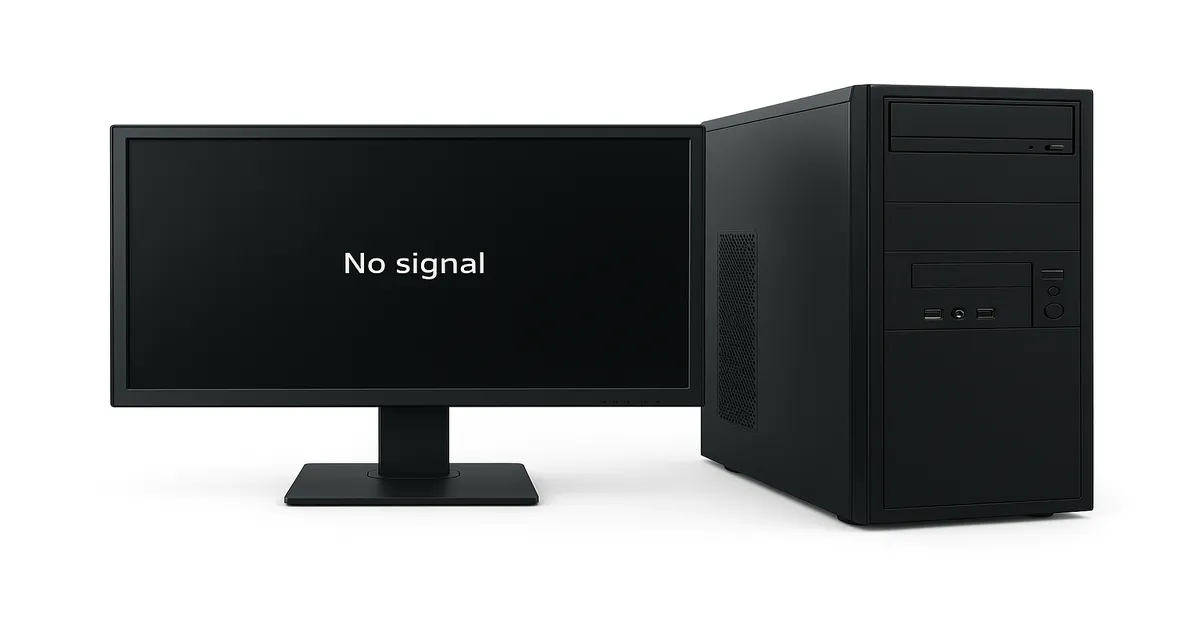
Gaming PC with no display
Common Causes
- Loose or faulty video cable
- Incorrect input source on monitor
- GPU or RAM not seated properly
- Dead GPU or PSU
- BIOS/UEFI failure or POST error
Step-by-Step Troubleshooting
1. Check Monitor and Cables
- Make sure the monitor is powered on
- Double-check HDMI/DisplayPort connections - Make sure the HDMI/DisplayPort cable is plugged into the graphics card, not the motherboard (unless you're using integrated graphics). Many users accidentally connect the cable to the wrong port.
- Try another cable or input port
- Use a known working monitor to test
2. Reset Display Output
- Disconnect everything
- Hold the power button for 30 seconds
- Reconnect only power, monitor, and GPU
3. Reseat GPU and RAM
- Power off and unplug your PC
- Remove and firmly reinsert the graphics card
- Do the same with your RAM sticks
4. Listen for Beeps or Codes
If your motherboard has a speaker: - 1 long, 2 short = GPU issue - Continuous = Memory error
5. Try Integrated Graphics
If your CPU has an iGPU: - Remove dedicated GPU - Connect HDMI to motherboard port
Motherboard Debug Code Reference
Beep Pattern
Meaning
1 long, 2 short
GPU Error
Continuous
RAM/Memory Issue
No beep
Power/Mobo issue
6. Clear CMOS
- Unplug power
- Remove CMOS battery for 1–2 minutes
- Reinstall and boot again
7. Power Supply Check
- Confirm PSU wattage is sufficient
- Test with another PSU if available
Still Not Working?
If all else fails: - Test each part in a working system - Try booting with minimal components
Conclusion
No display doesn’t always mean hardware failure. Often, it’s a loose connection or improper seating. Follow these steps methodically and you’ll likely get your system up and running.
Happy troubleshooting! 💻